packagedev.equo;importdev.equo.swt.Config;importorg.eclipse.swt.SWT;importorg.eclipse.swt.custom.CTabFolder;importorg.eclipse.swt.custom.CTabItem;importorg.eclipse.swt.layout.GridData;importorg.eclipse.swt.layout.GridLayout;importorg.eclipse.swt.widgets.*;/** * Snippet to reproduce CTabFolder/CTabItem issues: * 1. Tab font color appears inactive (gray) even when selected * 2. After closing a tab via the close button, the tab stays visible * * Steps to reproduce: * - Click on different tabs to observe font color * - Click the X button on a tab to close it * - Observe if the tab disappears correctly */publicclassCTabFolderCloseTabSnippet{publicstaticvoidmain(String[]args){Displaydisplay=newDisplay();Shellshell=newShell(display);shell.setText("CTabFolder Close Tab Bug");shell.setLayout(newGridLayout());CTabFolderfolder=newCTabFolder(shell,SWT.BORDER|SWT.CLOSE);folder.setLayoutData(newGridData(SWT.FILL,SWT.FILL,true,true));// Create tabs with close buttonfor(inti=0;i<5;i++){CTabItemitem=newCTabItem(folder,SWT.CLOSE);item.setText("Tab "+i);Texttext=newText(folder,SWT.MULTI|SWT.V_SCROLL);text.setText("Content of Tab "+i+"\n\nClick the X to close this tab.");item.setControl(text);}// Select first tabfolder.setSelection(0);shell.setSize(400,300);shell.open();while(!shell.isDisposed()){if(!display.readAndDispatch())display.sleep();}display.dispose();}}
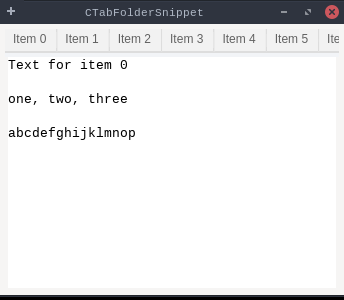
packagedev.equo;importdev.equo.swt.Config;importorg.eclipse.swt.SWT;importorg.eclipse.swt.custom.CTabFolder;importorg.eclipse.swt.custom.CTabFolder2Adapter;importorg.eclipse.swt.custom.CTabFolderEvent;importorg.eclipse.swt.custom.CTabItem;importorg.eclipse.swt.layout.GridData;importorg.eclipse.swt.layout.GridLayout;importorg.eclipse.swt.widgets.*;/** * Demonstrates the use of CTabFolder (Custom Tab Folder) widget in SWT. * This example creates a tab folder with 8 tabs, each containing a text area with sample content. * The tab folder includes: * - Minimize/maximize buttons in the tab bar * - Support for minimizing, maximizing, and restoring the tab folder * - Multi-line text content in each tab with scrollbars * - Custom styling with borders and proper layout management */publicclassCTabFolderSnippet{publicstaticvoidmain(String[]args){Displaydisplay=newDisplay();finalShellshell=newShell(display);shell.setText("CTabFolderSnippet");shell.setLayout(newGridLayout());finalCTabFolderfolder=newCTabFolder(shell,SWT.BORDER);folder.setLayoutData(newGridData(SWT.FILL,SWT.FILL,true,true));folder.setSimple(false);folder.setUnselectedImageVisible(false);folder.setUnselectedCloseVisible(false);for(inti=0;i<8;i++){CTabItemitem=newCTabItem(folder,SWT.NONE);item.setText("Item "+i);Texttext=newText(folder,SWT.MULTI|SWT.V_SCROLL|SWT.H_SCROLL);text.setText("Text for item "+i+"\n\none, two, three\n\nabcdefghijklmnop");item.setControl(text);}shell.setSize(350,300);shell.open();while(!shell.isDisposed()){if(!display.readAndDispatch())display.sleep();}display.dispose();}}
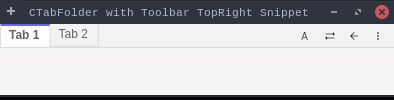
packagedev.equo;importdev.equo.swt.Config;importorg.eclipse.swt.SWT;importorg.eclipse.swt.custom.CTabFolder;importorg.eclipse.swt.custom.CTabItem;importorg.eclipse.swt.graphics.Image;importorg.eclipse.swt.layout.FillLayout;importorg.eclipse.swt.widgets.Composite;importorg.eclipse.swt.widgets.Display;importorg.eclipse.swt.widgets.Shell;importorg.eclipse.swt.widgets.ToolBar;importorg.eclipse.swt.widgets.ToolItem;importjava.io.IOException;importjava.io.InputStream;importjava.net.URL;importjava.nio.file.Files;importjava.nio.file.Path;importjava.nio.file.Paths;importjava.nio.file.StandardCopyOption;/** * Demonstrates CTabFolder with an integrated toolbar in the top-right corner. * This example shows how to use setTopRight() method to embed a custom toolbar with different types of tool items including icons and tooltips. */publicclassCTabFolderWithTopRightToolBarSnippet{publicstaticvoidmain(String[]args)throwsIOException{Config.forceEquo();System.setProperty("swt.evolve.ctabfolder_visible_controls","true");Displaydisplay=newDisplay();Shellshell=newShell(display);shell.setText("CTabFolder with Toolbar TopRight Snippet");shell.setSize(400,100);shell.setLayout(newFillLayout());CTabFoldertabFolder=newCTabFolder(shell,SWT.BORDER);//tabFolder.setMinimizeVisible(true);//tabFolder.setMaximizeVisible(true);CompositetoolbarComposite=newComposite(tabFolder,SWT.NONE);FillLayouttoolbarLayout=newFillLayout();toolbarLayout.marginHeight=2;toolbarLayout.marginWidth=2;toolbarComposite.setLayout(toolbarLayout);ToolBartoolBar=newToolBar(toolbarComposite,SWT.FLAT);ToolItemitemA=newToolItem(toolBar,SWT.PUSH);itemA.setText("A");itemA.setToolTipText("Item A");ToolItemcheck=newToolItem(toolBar,SWT.CHECK);check.setText("Check");check.setToolTipText("Check Item");check.setImage(newImage(display,getImagePath("synced.png")));ToolItembackward_forward=newToolItem(toolBar,SWT.PUSH);backward_forward.setToolTipText("backwards forward");backward_forward.setImage(newImage(display,getImagePath("backward_nav.png")));backward_forward.setHotImage(newImage(display,getImagePath("forward_nav.png")));ToolItemview_menu=newToolItem(toolBar,SWT.PUSH);view_menu.setToolTipText("view_menu");view_menu.setImage(newImage(display,getImagePath("view_menu.png")));tabFolder.setTopRight(toolbarComposite);CTabItemtab1=newCTabItem(tabFolder,SWT.NONE);tab1.setText("Tab 1");CTabItemtab2=newCTabItem(tabFolder,SWT.NONE);tab2.setText("Tab 2");tabFolder.setSelection(0);shell.open();while(!shell.isDisposed()){if(!display.readAndDispatch()){display.sleep();}}display.dispose();}privatestaticStringgetImagePath(StringimageName)throwsIOException{URLresourceUrl=CTabFolderWithTopRightToolBarSnippet.class.getResource("/"+imageName);if(resourceUrl==null){thrownewIllegalArgumentException("Resource not found: "+imageName);}if("file".equals(resourceUrl.getProtocol())){returnPaths.get(resourceUrl.getPath()).toString();}else{InputStreamis=CTabFolderWithTopRightToolBarSnippet.class.getResourceAsStream("/"+imageName);PathtmpDir=Files.createTempDirectory("swt-evolve-images-");PathtmpFile=tmpDir.resolve(imageName);assertis!=null;Files.copy(is,tmpFile,StandardCopyOption.REPLACE_EXISTING);tmpFile.toFile().deleteOnExit();returntmpFile.toAbsolutePath().toString();}}}