Skip to content

CCombo Examples

The CCombo class represents a selectable user interface object that combines a text field and a list and issues notification when an item is selected from the list.

Alignment Snippet

CCombo  Alignment Snippet

CCombo with different text alignments

CComboAlignmentSnippet.java
package dev.equo;

import dev.equo.swt.Config;
import org.eclipse.swt.*;
import org.eclipse.swt.custom.*;
import org.eclipse.swt.events.SelectionAdapter;
import org.eclipse.swt.graphics.*;
import org.eclipse.swt.layout.*;
import org.eclipse.swt.widgets.*;

/**
 * CCombo with different text alignments
 */
public class CComboAlignmentSnippet {
    public static void main(String[] args) {
        Config.useEquo(CCombo.class);
        Config.useEquo(Group.class);
        Display display = new Display();
        Shell shell = new Shell(display);
        shell.setText("CCombo - Text Alignment");
        shell.setLayout(new GridLayout(1, false));

        String[] items = {"Apple", "Banana", "Cherry", "Date", "Elderberry"};

        // Alignment group
        Group alignmentGroup = new Group(shell, SWT.NONE);
        alignmentGroup.setText("Text Alignment");
        alignmentGroup.setLayout(new GridLayout(2, false));
        alignmentGroup.setLayoutData(new GridData(SWT.FILL, SWT.CENTER, true, false));

        Label label1 = new Label(alignmentGroup, SWT.NONE);
        label1.setText("LEFT aligned:");

        CCombo leftCombo = new CCombo(alignmentGroup, SWT.BORDER | SWT.READ_ONLY | SWT.LEFT);
        leftCombo.setLayoutData(new GridData(200, SWT.DEFAULT));
        leftCombo.setItems(items);
        leftCombo.select(0);

        Label label2 = new Label(alignmentGroup, SWT.NONE);
        label2.setText("CENTER aligned:");

        CCombo centerCombo = new CCombo(alignmentGroup, SWT.BORDER | SWT.READ_ONLY | SWT.CENTER);
        centerCombo.setLayoutData(new GridData(200, SWT.DEFAULT));
        centerCombo.setItems(items);
        centerCombo.select(1);

        Label label3 = new Label(alignmentGroup, SWT.NONE);
        label3.setText("RIGHT aligned:");

        CCombo rightCombo = new CCombo(alignmentGroup, SWT.BORDER | SWT.READ_ONLY | SWT.RIGHT);
        rightCombo.setLayoutData(new GridData(200, SWT.DEFAULT));
        rightCombo.setItems(items);
        rightCombo.select(2);

        // Selection info group
        Group infoGroup = new Group(shell, SWT.NONE);
        infoGroup.setText("Selection Info");
        infoGroup.setLayout(new GridLayout(2, false));
        infoGroup.setLayoutData(new GridData(SWT.FILL, SWT.CENTER, true, false));

        Label infoLabel = new Label(infoGroup, SWT.NONE);
        infoLabel.setText("Selected:");

        Label selectionValue = new Label(infoGroup, SWT.BORDER);
        selectionValue.setLayoutData(new GridData(200, SWT.DEFAULT));
        selectionValue.setText("Apple");

        // Add listeners
        SelectionAdapter updateSelection = new SelectionAdapter() {
            @Override
            public void widgetSelected(org.eclipse.swt.events.SelectionEvent e) {
                CCombo source = (CCombo) e.widget;
                selectionValue.setText(source.getText());
                System.out.println("Selected: " + source.getText());
            }
        };

        leftCombo.addSelectionListener(updateSelection);
        centerCombo.addSelectionListener(updateSelection);
        rightCombo.addSelectionListener(updateSelection);

        shell.pack();
        shell.open();

        while (!shell.isDisposed()) {
            if (!display.readAndDispatch()) display.sleep();
        }
        display.dispose();
    }
}

View on GitHub

Border Snippet

CCombo  Border Snippet

CCombo with different border styles

CComboBorderSnippet.java
package dev.equo;

import dev.equo.swt.Config;
import org.eclipse.swt.*;
import org.eclipse.swt.custom.*;
import org.eclipse.swt.events.SelectionAdapter;
import org.eclipse.swt.graphics.*;
import org.eclipse.swt.layout.*;
import org.eclipse.swt.widgets.*;

/**
 * CCombo with different border styles
 */
public class CComboBorderSnippet {
    public static void main(String[] args) {
        Config.useEquo(CCombo.class);
        Config.useEquo(Group.class);
        Display display = new Display();
        Shell shell = new Shell(display);
        shell.setText("CCombo - Border Styles");
        shell.setLayout(new GridLayout(1, false));

        String[] items = {"Apple", "Banana", "Cherry", "Date", "Elderberry"};

        // Border styles group
        Group borderGroup = new Group(shell, SWT.NONE);
        borderGroup.setText("Border Styles");
        borderGroup.setLayout(new GridLayout(2, false));
        borderGroup.setLayoutData(new GridData(SWT.FILL, SWT.CENTER, true, false));

        Label label1 = new Label(borderGroup, SWT.NONE);
        label1.setText("BORDER:");

        CCombo borderedCombo = new CCombo(borderGroup, SWT.BORDER | SWT.READ_ONLY);
        borderedCombo.setLayoutData(new GridData(200, SWT.DEFAULT));
        borderedCombo.setItems(items);
        borderedCombo.select(0);

        Label label2 = new Label(borderGroup, SWT.NONE);
        label2.setText("FLAT:");

        CCombo flatCombo = new CCombo(borderGroup, SWT.FLAT | SWT.READ_ONLY);
        flatCombo.setLayoutData(new GridData(200, SWT.DEFAULT));
        flatCombo.setItems(items);
        flatCombo.select(1);

        Label label3 = new Label(borderGroup, SWT.NONE);
        label3.setText("No style:");

        CCombo plainCombo = new CCombo(borderGroup, SWT.READ_ONLY);
        plainCombo.setLayoutData(new GridData(200, SWT.DEFAULT));
        plainCombo.setItems(items);
        plainCombo.select(2);

        // Selection info group
        Group infoGroup = new Group(shell, SWT.NONE);
        infoGroup.setText("Selection Info");
        infoGroup.setLayout(new GridLayout(2, false));
        infoGroup.setLayoutData(new GridData(SWT.FILL, SWT.CENTER, true, false));

        Label infoLabel = new Label(infoGroup, SWT.NONE);
        infoLabel.setText("Selected:");

        Label selectionValue = new Label(infoGroup, SWT.BORDER);
        selectionValue.setLayoutData(new GridData(200, SWT.DEFAULT));
        selectionValue.setText("Apple");

        // Add listeners
        SelectionAdapter updateSelection = new SelectionAdapter() {
            @Override
            public void widgetSelected(org.eclipse.swt.events.SelectionEvent e) {
                CCombo source = (CCombo) e.widget;
                selectionValue.setText(source.getText());
                System.out.println("Selected: " + source.getText());
            }
        };

        borderedCombo.addSelectionListener(updateSelection);
        flatCombo.addSelectionListener(updateSelection);
        plainCombo.addSelectionListener(updateSelection);

        shell.pack();
        shell.open();

        while (!shell.isDisposed()) {
            if (!display.readAndDispatch()) display.sleep();
        }
        display.dispose();
    }
}

View on GitHub

Colors Snippet

CCombo  Colors Snippet

CCombo with custom colors

CComboColorsSnippet.java
package dev.equo;

import static org.eclipse.swt.events.SelectionListener.*;

import dev.equo.swt.Config;
import org.eclipse.swt.*;
import org.eclipse.swt.custom.*;
import org.eclipse.swt.events.SelectionAdapter;
import org.eclipse.swt.graphics.*;
import org.eclipse.swt.layout.*;
import org.eclipse.swt.widgets.*;

/**
 * CCombo with custom colors
 */
public class CComboColorsSnippet {
    public static void main(String[] args) {
        Config.useEquo(CCombo.class);
        Config.useEquo(Group.class);
        Display display = new Display();
        Shell shell = new Shell(display);
        shell.setText("CCombo - Custom Colors");
        shell.setLayout(new GridLayout(1, false));

        String[] items = {"Apple", "Banana", "Cherry", "Date", "Elderberry"};

        // Custom colors group
        Group colorGroup = new Group(shell, SWT.NONE);
        colorGroup.setText("Custom Colors");
        colorGroup.setLayout(new GridLayout(2, false));
        colorGroup.setLayoutData(new GridData(SWT.FILL, SWT.CENTER, true, false));

        Label label1 = new Label(colorGroup, SWT.NONE);
        label1.setText("Default colors:");

        CCombo defaultCombo = new CCombo(colorGroup, SWT.BORDER | SWT.READ_ONLY);
        defaultCombo.setLayoutData(new GridData(200, SWT.DEFAULT));
        defaultCombo.setItems(items);
        defaultCombo.select(0);

        Label label2 = new Label(colorGroup, SWT.NONE);
        label2.setText("Blue background:");

        CCombo blueCombo = new CCombo(colorGroup, SWT.BORDER | SWT.READ_ONLY);
        blueCombo.setLayoutData(new GridData(200, SWT.DEFAULT));
        blueCombo.setItems(items);
        blueCombo.select(1);
        blueCombo.setBackground(new Color(220, 240, 255)); // Light blue

        Label label3 = new Label(colorGroup, SWT.NONE);
        label3.setText("Red foreground:");

        CCombo redTextCombo = new CCombo(colorGroup, SWT.BORDER | SWT.READ_ONLY | SWT.CENTER);
        redTextCombo.setLayoutData(new GridData(200, SWT.DEFAULT));
        redTextCombo.setItems(items);
        redTextCombo.select(2);
        redTextCombo.setForeground(new Color(200, 0, 0)); // Dark red

        Label label4 = new Label(colorGroup, SWT.NONE);
        label4.setText("Green bg + white fg:");

        CCombo greenCombo = new CCombo(colorGroup, SWT.BORDER | SWT.READ_ONLY | SWT.RIGHT);
        greenCombo.setLayoutData(new GridData(200, SWT.DEFAULT));
        greenCombo.setItems(items);
        greenCombo.select(3);
        greenCombo.setBackground(new Color(0, 120, 0)); // Dark green
        greenCombo.setForeground(new Color(255, 255, 255)); // White

        // Selection info group
        Group infoGroup = new Group(shell, SWT.NONE);
        infoGroup.setText("Selection Info");
        infoGroup.setLayout(new GridLayout(2, false));
        infoGroup.setLayoutData(new GridData(SWT.FILL, SWT.CENTER, true, false));

        Label infoLabel = new Label(infoGroup, SWT.NONE);
        infoLabel.setText("Selected:");

        Label selectionValue = new Label(infoGroup, SWT.BORDER);
        selectionValue.setLayoutData(new GridData(200, SWT.DEFAULT));
        selectionValue.setText("Apple");

        // Add listeners
        SelectionAdapter updateSelection = new SelectionAdapter() {
            @Override
            public void widgetSelected(org.eclipse.swt.events.SelectionEvent e) {
                CCombo source = (CCombo) e.widget;
                selectionValue.setText(source.getText());
                System.out.println("Selected: " + source.getText());
            }
        };

        defaultCombo.addSelectionListener(updateSelection);
        blueCombo.addSelectionListener(updateSelection);
        redTextCombo.addSelectionListener(updateSelection);
        greenCombo.addSelectionListener(updateSelection);

        shell.pack();
        shell.open();

        while (!shell.isDisposed()) {
            if (!display.readAndDispatch()) display.sleep();
        }
        display.dispose();
    }
}

View on GitHub

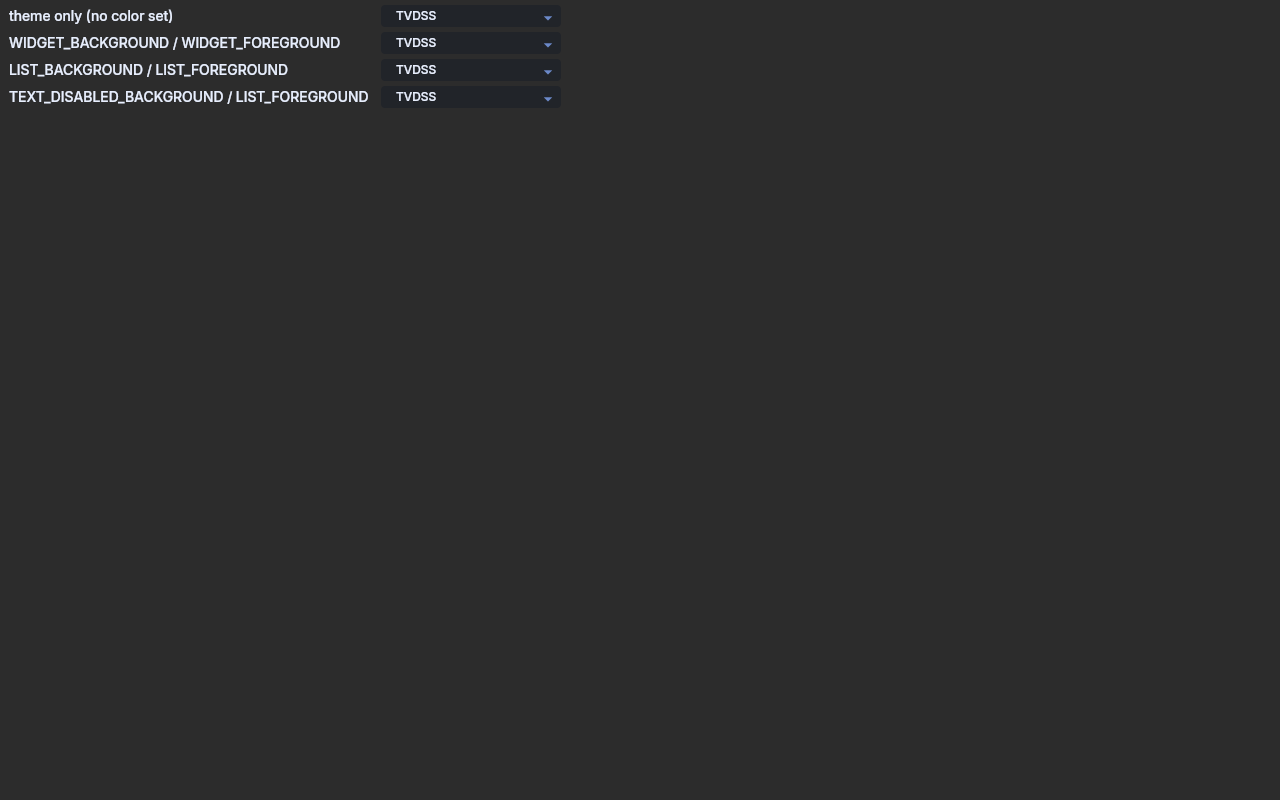
Dark Theme Snippet

CCombo  Dark Theme Snippet

CCombo under a dark theme, with and without application-supplied colors.

A themed application colors its own controls, handing each one a color it read from

Display#getSystemColor. Every row is the same CCombo; only where its background and

foreground come from differs. Open each dropdown and compare the closed field, the

dropdown panel and the item text against each other and against the dark surface.

CComboDarkThemeSnippet.java
package dev.equo;

import dev.equo.swt.Config;
import org.eclipse.swt.SWT;
import org.eclipse.swt.custom.CCombo;
import org.eclipse.swt.graphics.Color;
import org.eclipse.swt.layout.GridData;
import org.eclipse.swt.layout.GridLayout;
import org.eclipse.swt.widgets.Composite;
import org.eclipse.swt.widgets.Display;
import org.eclipse.swt.widgets.Label;
import org.eclipse.swt.widgets.Shell;

/**
 * CCombo under a dark theme, with and without application-supplied colors.
 *
 * A themed application colors its own controls, handing each one a color it read from
 * Display#getSystemColor. Every row is the same CCombo; only where its background and
 * foreground come from differs. Open each dropdown and compare the closed field, the
 * dropdown panel and the item text against each other and against the dark surface.
 */
public class CComboDarkThemeSnippet {

    private static final String[] ITEMS = { "TWT", "TVD", "TVDSS", "FREQ" };

    public static void main(String[] args) {
        System.setProperty("swt.evolve.force_theme", "dark");

        Config.useEquo(CCombo.class);
        Config.useEquo(Label.class);

        Display display = new Display();
        Shell shell = new Shell(display);
        shell.setText("CCombo - dark theme color sources");
        shell.setLayout(new GridLayout(2, false));

        row(shell, "theme only (no color set)", null, null);
        row(shell, "WIDGET_BACKGROUND / WIDGET_FOREGROUND",
                display.getSystemColor(SWT.COLOR_WIDGET_BACKGROUND),
                display.getSystemColor(SWT.COLOR_WIDGET_FOREGROUND));
        row(shell, "LIST_BACKGROUND / LIST_FOREGROUND",
                display.getSystemColor(SWT.COLOR_LIST_BACKGROUND),
                display.getSystemColor(SWT.COLOR_LIST_FOREGROUND));
        row(shell, "TEXT_DISABLED_BACKGROUND / LIST_FOREGROUND",
                display.getSystemColor(SWT.COLOR_TEXT_DISABLED_BACKGROUND),
                display.getSystemColor(SWT.COLOR_LIST_FOREGROUND));

        shell.setSize(560, 260);
        shell.open();

        while (!shell.isDisposed()) {
            if (!display.readAndDispatch())
                display.sleep();
        }
        display.dispose();
    }

    private static void row(Composite parent, String name, Color background, Color foreground) {
        Label label = new Label(parent, SWT.NONE);
        label.setText(name);

        CCombo combo = new CCombo(parent, SWT.BORDER | SWT.READ_ONLY);
        combo.setLayoutData(new GridData(180, SWT.DEFAULT));
        combo.setItems(ITEMS);
        combo.select(2);
        if (background != null)
            combo.setBackground(background);
        if (foreground != null)
            combo.setForeground(foreground);

        System.out.println(name
                + " -> background=" + rgb(background)
                + ", foreground=" + rgb(foreground));
    }

    private static String rgb(Color color) {
        return color == null
                ? "unset"
                : String.format("#%02X%02X%02X", color.getRed(), color.getGreen(), color.getBlue());
    }
}

View on GitHub

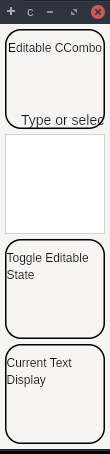
Editable Snippet

CCombo  Editable Snippet

CCombo Editable - Shows editable CCombo where user can type custom text

Key difference: Regular Combo READ_ONLY can't be made editable on all platforms

CCombo allows switching between editable and read-only at runtime

CComboEditableSnippet.java
package dev.equo;

import static org.eclipse.swt.events.SelectionListener.*;

import dev.equo.swt.Config;
import org.eclipse.swt.*;
import org.eclipse.swt.custom.*;
import org.eclipse.swt.layout.*;
import org.eclipse.swt.widgets.*;

/**
 * CCombo Editable - Shows editable CCombo where user can type custom text
 * Key difference: Regular Combo READ_ONLY can't be made editable on all platforms
 * CCombo allows switching between editable and read-only at runtime
 */
public class CComboEditableSnippet {
    public static void main(String[] args) {
        Config.useEquo(CCombo.class);
        Config.useEquo(Group.class);
        Display display = new Display();
        Shell shell = new Shell(display);
        shell.setText("CCombo Editable Example");
        shell.setLayout(new GridLayout(1, false));

        // Editable CCombo - user can type anything
        Group editableGroup = new Group(shell, SWT.NONE);
        editableGroup.setText("Editable CCombo");
        editableGroup.setLayout(new GridLayout(2, false));
        editableGroup.setLayoutData(new GridData(SWT.FILL, SWT.CENTER, true, false));

        Label label1 = new Label(editableGroup, SWT.NONE);
        label1.setText("Type or select:");

        CCombo editableCombo = new CCombo(editableGroup, SWT.BORDER);
        editableCombo.setLayoutData(new GridData(200, SWT.DEFAULT));
        editableCombo.setItems(new String[] {"Red", "Green", "Blue", "Yellow", "Orange"});
        editableCombo.setText("Type custom text...");

        // User can type custom text not in the list
        editableCombo.addModifyListener(e -> {
            System.out.println("Text changed to: " + editableCombo.getText());
        });

        // Toggle editable state
        Group toggleGroup = new Group(shell, SWT.NONE);
        toggleGroup.setText("Toggle Editable State");
        toggleGroup.setLayout(new GridLayout(2, false));
        toggleGroup.setLayoutData(new GridData(SWT.FILL, SWT.CENTER, true, false));

        Label label2 = new Label(toggleGroup, SWT.NONE);
        label2.setText("Current state:");

        Button toggleButton = new Button(toggleGroup, SWT.PUSH);
        toggleButton.setText("Make Read-Only");
        toggleButton.addSelectionListener(widgetSelectedAdapter(e -> {
            boolean isEditable = editableCombo.getEditable();
            editableCombo.setEditable(!isEditable);
            toggleButton.setText(isEditable ? "Make Editable" : "Make Read-Only");
            System.out.println("CCombo is now " + (isEditable ? "READ-ONLY" : "EDITABLE"));
        }));

        // Show current text
        Group displayGroup = new Group(shell, SWT.NONE);
        displayGroup.setText("Current Text Display");
        displayGroup.setLayout(new GridLayout(2, false));
        displayGroup.setLayoutData(new GridData(SWT.FILL, SWT.CENTER, true, false));

        Label label3 = new Label(displayGroup, SWT.NONE);
        label3.setText("Current text:");

        Label currentText = new Label(displayGroup, SWT.BORDER);
        currentText.setLayoutData(new GridData(200, SWT.DEFAULT));
        currentText.setText("");

        editableCombo.addSelectionListener(widgetSelectedAdapter(e -> {
            currentText.setText(editableCombo.getText());
        }));

        shell.pack();
        shell.open();

        while (!shell.isDisposed()) {
            if (!display.readAndDispatch()) display.sleep();
        }
        display.dispose();
    }
}

View on GitHub

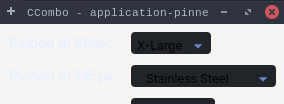
Pinned Width Snippet

CCombo  Pinned Width Snippet

CCombo values at widths the application pins, the way a toolbar contribution does.

Each row pins a width through RowData and selects the value that has to survive it. The

value must be readable in full at every pinned width, exactly as a native CCombo shows it.

The last row pins nothing, so the combo takes its own preferred width.

Toggle Config.useEclipse(CCombo.class) below to compare against native SWT.

CComboPinnedWidthSnippet.java
package dev.equo;

import dev.equo.swt.Config;
import org.eclipse.swt.SWT;
import org.eclipse.swt.custom.CCombo;
import org.eclipse.swt.layout.GridData;
import org.eclipse.swt.layout.GridLayout;
import org.eclipse.swt.layout.RowData;
import org.eclipse.swt.layout.RowLayout;
import org.eclipse.swt.widgets.Composite;
import org.eclipse.swt.widgets.Display;
import org.eclipse.swt.widgets.Label;
import org.eclipse.swt.widgets.Shell;

/**
 * CCombo values at widths the application pins, the way a toolbar contribution does.
 *
 * Each row pins a width through RowData and selects the value that has to survive it. The
 * value must be readable in full at every pinned width, exactly as a native CCombo shows it.
 * The last row pins nothing, so the combo takes its own preferred width.
 *
 * Toggle Config.useEclipse(CCombo.class) below to compare against native SWT.
 */
public class CComboPinnedWidthSnippet {

    public static void main(String[] args) {
        Config.useEquo(CCombo.class);
        Display display = new Display();
        Shell shell = new Shell(display);
        shell.setText("CCombo - application-pinned widths");
        shell.setLayout(new GridLayout(2, false));

        String[] sizes = {"Small", "Medium", "Large", "X-Large"};
        String[] materials = {"Aluminium", "Steel", "Stainless Steel"};

        row(shell, "Pinned to 80px:", sizes, 3, 80);
        row(shell, "Pinned to 145px:", materials, 2, 145);
        row(shell, "Unpinned:", sizes, 3, SWT.DEFAULT);

        shell.pack();
        shell.open();
        while (!shell.isDisposed()) {
            if (!display.readAndDispatch()) display.sleep();
        }
        display.dispose();
    }

    private static void row(Shell shell, String label, String[] items, int selected, int width) {
        Label caption = new Label(shell, SWT.NONE);
        caption.setText(label);
        caption.setLayoutData(new GridData(SWT.FILL, SWT.CENTER, false, false));

        // A RowLayout container, so the pinned width arrives as RowData rather than a
        // GridData hint -- the shape a toolbar contribution uses.
        Composite holder = new Composite(shell, SWT.NONE);
        holder.setLayout(new RowLayout(SWT.HORIZONTAL));

        CCombo combo = new CCombo(holder, SWT.BORDER | SWT.READ_ONLY);
        combo.setItems(items);
        combo.select(selected);
        if (width != SWT.DEFAULT) combo.setLayoutData(new RowData(width, SWT.DEFAULT));
    }
}

View on GitHub

Simple Snippet

CCombo  Simple Snippet

CCombo SIMPLE style - Shows list always visible (not dropdown)

Key difference: SIMPLE shows the list permanently below the text field

CComboSimpleSnippet.java
package dev.equo;

import static org.eclipse.swt.events.SelectionListener.*;

import dev.equo.swt.Config;
import org.eclipse.swt.*;
import org.eclipse.swt.custom.*;
import org.eclipse.swt.layout.*;
import org.eclipse.swt.widgets.*;

/**
 * CCombo SIMPLE style - Shows list always visible (not dropdown)
 * Key difference: SIMPLE shows the list permanently below the text field
 */
public class CComboSimpleSnippet {
    public static void main(String[] args) {
        Config.useEquo(CCombo.class);
        Config.useEquo(Group.class);
        Display display = new Display();
        Shell shell = new Shell(display);
        shell.setText("CCombo SIMPLE Style");
        shell.setLayout(new GridLayout(1, false));

        String[] items = {"Red", "Green", "Blue", "Yellow", "Orange", "Purple", "Pink", "Brown"};

        // SIMPLE Read-Only CCombo
        Group simpleReadOnlyGroup = new Group(shell, SWT.NONE);
        simpleReadOnlyGroup.setText("SIMPLE + READ_ONLY");
        simpleReadOnlyGroup.setLayout(new GridLayout(2, false));
        simpleReadOnlyGroup.setLayoutData(new GridData(SWT.FILL, SWT.FILL, true, true));

        Label label1 = new Label(simpleReadOnlyGroup, SWT.NONE);
        label1.setText("Select from list:");

        CCombo simpleReadOnly = new CCombo(simpleReadOnlyGroup, SWT.SIMPLE | SWT.BORDER | SWT.READ_ONLY);
        simpleReadOnly.setLayoutData(new GridData(200, 150));
        simpleReadOnly.setItems(items);
        simpleReadOnly.select(0);

        // SIMPLE Editable CCombo
        Group simpleEditableGroup = new Group(shell, SWT.NONE);
        simpleEditableGroup.setText("SIMPLE + Editable");
        simpleEditableGroup.setLayout(new GridLayout(2, false));
        simpleEditableGroup.setLayoutData(new GridData(SWT.FILL, SWT.FILL, true, true));

        Label label2 = new Label(simpleEditableGroup, SWT.NONE);
        label2.setText("Type or select:");

        CCombo simpleEditable = new CCombo(simpleEditableGroup, SWT.SIMPLE | SWT.BORDER);
        simpleEditable.setLayoutData(new GridData(200, 150));
        simpleEditable.setItems(items);
        simpleEditable.setText("Type custom...");

        // Display group
        Group displayGroup = new Group(shell, SWT.NONE);
        displayGroup.setText("Current Selection");
        displayGroup.setLayout(new GridLayout(2, false));
        displayGroup.setLayoutData(new GridData(SWT.FILL, SWT.CENTER, true, false));

        Label label3 = new Label(displayGroup, SWT.NONE);
        label3.setText("Selected:");

        Label currentText = new Label(displayGroup, SWT.BORDER);
        currentText.setLayoutData(new GridData(200, SWT.DEFAULT));
        currentText.setText("Red");

        // Add listeners
        simpleReadOnly.addSelectionListener(widgetSelectedAdapter(e -> {
            currentText.setText(simpleReadOnly.getText());
            System.out.println("Read-Only selected: " + simpleReadOnly.getText());
        }));

        simpleEditable.addSelectionListener(widgetSelectedAdapter(e -> {
            currentText.setText(simpleEditable.getText());
            System.out.println("Editable selected: " + simpleEditable.getText());
        }));

        simpleEditable.addModifyListener(e -> {
            System.out.println("Text modified: " + simpleEditable.getText());
        });

        shell.pack();
        shell.open();

        while (!shell.isDisposed()) {
            if (!display.readAndDispatch()) display.sleep();
        }
        display.dispose();
    }
}

View on GitHub

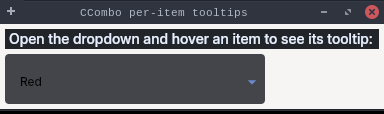
Tooltip Snippet

CCombo  Tooltip Snippet

CCombo per-item tooltips (issue #610): tooltip strings are delivered through

{@code setData("org.eclipse.swt.custom.CCombo.itemToolTips", String[])} and rendered by the

Flutter dropdown. Open the dropdown and hover an item to see its documentation panel.

CComboTooltipSnippet.java
package dev.equo;

import dev.equo.swt.Config;
import org.eclipse.swt.*;
import org.eclipse.swt.custom.*;
import org.eclipse.swt.layout.*;
import org.eclipse.swt.widgets.*;

/**
 * CCombo per-item tooltips (issue #610): tooltip strings are delivered through
 * {@code setData("org.eclipse.swt.custom.CCombo.itemToolTips", String[])} and rendered by the
 * Flutter dropdown. Open the dropdown and hover an item to see its documentation panel.
 */
public class CComboTooltipSnippet {

    private static final String ITEM_TOOLTIPS_KEY = "org.eclipse.swt.custom.CCombo.itemToolTips";

    public static void main(String[] args) {
        Config.useEquo(CCombo.class);
        Display display = new Display();
        Shell shell = new Shell(display);
        shell.setText("CCombo per-item tooltips");
        shell.setLayout(new GridLayout(1, false));

        Label label = new Label(shell, SWT.NONE);
        label.setText("Open the dropdown and hover an item to see its tooltip:");

        String[] items = {"Red", "Green", "Blue"};
        String[] tooltips = {
            "<h4>Red</h4><p>The colour <b>red</b> (#FF0000).</p><p><a href=\"https://example.com/red\">More</a></p>",
            "<h4>Green</h4><p>The colour <b>green</b> (#00FF00).</p><ul><li>a primary colour</li></ul>",
            "<h4>Blue</h4><p>The colour <b>blue</b> (#0000FF).</p><p><a href=\"https://example.com/blue\">More</a></p>",
        };

        CCombo combo = new CCombo(shell, SWT.BORDER | SWT.READ_ONLY);
        combo.setLayoutData(new GridData(260, SWT.DEFAULT));
        combo.setItems(items);
        combo.setData(ITEM_TOOLTIPS_KEY, tooltips);
        combo.select(0);

        shell.pack();
        shell.open();

        while (!shell.isDisposed()) {
            if (!display.readAndDispatch()) display.sleep();
        }
        display.dispose();
    }
}

View on GitHub