Skip to content

Composite Examples

Instances of this class are controls which are capable of containing other controls.

Button Snippet

Composite  Button Snippet

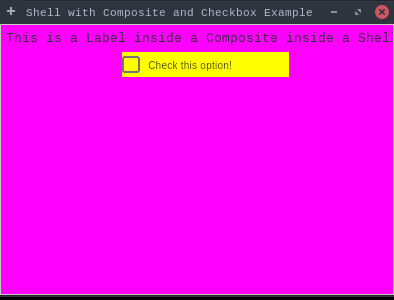
Example demonstrating CompositeButtonSnippet.

CompositeButtonSnippet.java
package dev.equo;

import dev.equo.swt.Config;
import org.eclipse.swt.SWT;
import org.eclipse.swt.graphics.Color;
import org.eclipse.swt.layout.FillLayout;
import org.eclipse.swt.layout.GridData;
import org.eclipse.swt.layout.GridLayout;
import org.eclipse.swt.widgets.*;

import static org.eclipse.swt.events.SelectionListener.widgetSelectedAdapter;

public class CompositeButtonSnippet {
    public static void main(String[] args) {
        Config.useEquo(Button.class);
        Config.useEquo(Label.class);

        Display display = new Display();
        Shell shell = new Shell(display);
        shell.setText("Shell with Composite and Checkbox Example");
        shell.setSize(400, 300);

        // Configure shell layout
        shell.setLayout(new FillLayout());

        // Set shell background color
        shell.setBackground(display.getSystemColor(SWT.COLOR_RED));

        // Create a composite inside the shell
        Composite composite = new Composite(shell, SWT.BORDER);
        composite.setLayout(new GridLayout(1, false));

        // Set composite background color
        composite.setBackground(display.getSystemColor(SWT.COLOR_MAGENTA));
        composite.setBackgroundMode(SWT.INHERIT_FORCE);

        // Add an explanatory label
        Label label = new Label(composite, SWT.NONE);
        label.setText("This is a Label inside a Composite inside a Shell:");
        label.setLayoutData(new GridData(SWT.CENTER, SWT.CENTER, false, false));

        // Create a checkbox inside the composite
        Button checkbox = new Button(composite, SWT.CHECK);
        checkbox.setText("Check this option!");
        checkbox.setLayoutData(new GridData(SWT.CENTER, SWT.CENTER, false, false));

        // Set checkbox background color explicitly
        checkbox.setBackground(display.getSystemColor(SWT.COLOR_YELLOW));

        // Print background colors of all components
        Color shellColor = shell.getBackground();
        Color compositeColor = composite.getBackground();
        Color checkboxColor = checkbox.getBackground();

        System.out.println("Shell background color: " + shellColor);
        System.out.println("Composite background color: " + compositeColor);
        System.out.println("Checkbox background color: " + checkboxColor);

        // Add listener to checkbox
        checkbox.addSelectionListener(widgetSelectedAdapter(e -> {
            boolean isSelected = checkbox.getSelection();
            System.out.println("Checkbox inside the Composite was " + (isSelected ? "checked" : "unchecked") + "!");
            MessageBox messageBox = new MessageBox(shell, SWT.ICON_INFORMATION);
            messageBox.setText("Information");
            messageBox.setMessage("Checkbox " + (isSelected ? "checked" : "unchecked") + " successfully!");
            messageBox.open();
        }));

        // Open the shell
        shell.open();
        while (!shell.isDisposed()) {
            if (!display.readAndDispatch()) {
                display.sleep();
            }
        }
        display.dispose();
    }
}

View on GitHub

Paint Listener Snippet

Composite  Paint Listener Snippet

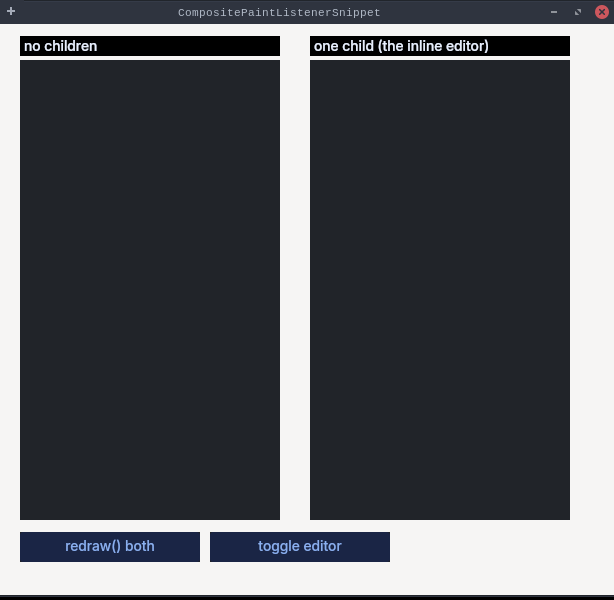
A Composite — not a Canvas — that draws its whole content from a PaintListener, the shape a

colour-scale editor has: a gradient with a ruler down one side, and a hidden inline Text editor

that pops over a value on demand.

The two panels differ in exactly one thing: the right one owns a child (the editor), the left one

does not. Both must paint identically. If only the left one paints, the composite's children

branch is dropping the draw operations Java emits.

Every other GC example here paints on a Canvas, which is why this path went unexercised.

CompositePaintListenerSnippet.java
package dev.equo;

import dev.equo.swt.Config;
import org.eclipse.swt.SWT;
import org.eclipse.swt.graphics.Color;
import org.eclipse.swt.graphics.GC;
import org.eclipse.swt.widgets.Button;
import org.eclipse.swt.widgets.Composite;
import org.eclipse.swt.widgets.Display;
import org.eclipse.swt.widgets.Label;
import org.eclipse.swt.widgets.Shell;
import org.eclipse.swt.widgets.Text;

/**
 * A Composite — not a Canvas — that draws its whole content from a PaintListener, the shape a
 * colour-scale editor has: a gradient with a ruler down one side, and a hidden inline Text editor
 * that pops over a value on demand.
 *
 * The two panels differ in exactly one thing: the right one owns a child (the editor), the left one
 * does not. Both must paint identically. If only the left one paints, the composite's children
 * branch is dropping the draw operations Java emits.
 *
 * Every other GC example here paints on a Canvas, which is why this path went unexercised.
 */
public class CompositePaintListenerSnippet {

    private static final int PANEL_W = 260;
    private static final int PANEL_H = 460;

    public static void main(String[] args) {
        Config.forceEquo();
        Display display = new Display();
        Shell shell = new Shell(display);
        shell.setText("CompositePaintListenerSnippet");
        shell.setSize(620, 600);

        new Label(shell, SWT.NONE).setBounds(20, 12, 260, 20);
        Label left = new Label(shell, SWT.NONE);
        left.setText("no children");
        left.setBounds(20, 12, 260, 20);
        Label right = new Label(shell, SWT.NONE);
        right.setText("one child (the inline editor)");
        right.setBounds(310, 12, 260, 20);

        Composite childless = new Composite(shell, SWT.NONE);
        childless.setBounds(20, 36, PANEL_W, PANEL_H);
        childless.addPaintListener(e -> drawScale(e.gc, "no children"));

        Composite withChild = new Composite(shell, SWT.NONE);
        withChild.setBounds(310, 36, PANEL_W, PANEL_H);
        withChild.addPaintListener(e -> drawScale(e.gc, "with child"));

        // The inline editor: present, hidden, and small — the only structural difference between
        // the two panels, and enough to route this one down the other build branch.
        Text editor = new Text(withChild, SWT.BORDER);
        editor.setBounds(4, 4, 57, 22);
        editor.setText("255.0");
        editor.setVisible(false);

        Button redraw = new Button(shell, SWT.PUSH);
        redraw.setText("redraw() both");
        redraw.setBounds(20, 508, 180, 30);
        redraw.addListener(SWT.Selection, e -> {
            childless.redraw();
            withChild.redraw();
        });

        Button toggleEditor = new Button(shell, SWT.PUSH);
        toggleEditor.setText("toggle editor");
        toggleEditor.setBounds(210, 508, 180, 30);
        toggleEditor.addListener(SWT.Selection, e -> editor.setVisible(!editor.getVisible()));

        shell.open();
        while (!shell.isDisposed()) {
            if (!display.readAndDispatch())
                display.sleep();
        }
        display.dispose();
    }

    /** Greyscale ramp, a ruler with labelled ticks, and a rotated caption. */
    private static void drawScale(GC gc, String caption) {
        int rampX = 60, rampW = 120;
        for (int y = 0; y < PANEL_H; y++) {
            int v = (int) (255.0 * y / PANEL_H);
            Color c = new Color(gc.getDevice(), v, v, v);
            gc.setBackground(c);
            gc.fillRectangle(rampX, y, rampW, 1);
            c.dispose();
        }

        Color black = new Color(gc.getDevice(), 0, 0, 0);
        gc.setForeground(black);
        gc.drawRectangle(rampX, 0, rampW, PANEL_H - 1);
        for (int i = 0; i <= 10; i++) {
            int y = i * (PANEL_H - 1) / 10;
            gc.drawLine(rampX - 8, y, rampX, y);
            gc.drawText(String.valueOf(i * 25.5), 4, Math.min(y, PANEL_H - 16), true);
        }
        gc.drawText(caption, rampX + rampW + 8, 4, true);
        black.dispose();
    }
}

View on GitHub

Snippet

Composite  Snippet

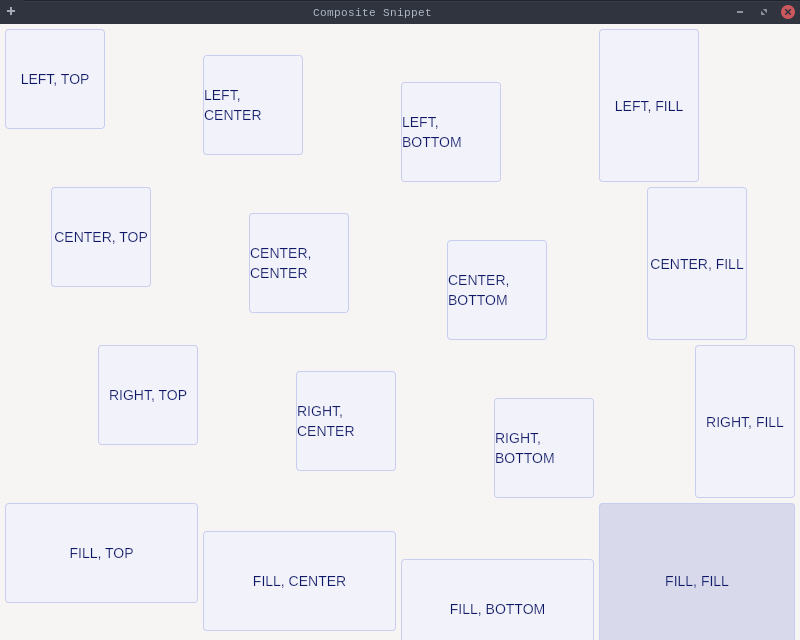
Demonstrates the use of Composite with GridLayout and various GridData alignment options.

Shows how to position buttons using different horizontal and vertical alignment combinations.

CompositeSnippet.java
package dev.equo;

import dev.equo.swt.Config;
import org.eclipse.swt.SWT;
import org.eclipse.swt.layout.FillLayout;
import org.eclipse.swt.layout.GridData;
import org.eclipse.swt.layout.GridLayout;
import org.eclipse.swt.widgets.*;

/**
 * Demonstrates the use of Composite with GridLayout and various GridData alignment options.
 * Shows how to position buttons using different horizontal and vertical alignment combinations.
 */
public class CompositeSnippet {
    public static void main(String[] args) {
        Config.useEquo(Composite.class);
        Display display = new Display();
        Shell shell = new Shell(display);
        shell.setText("Composite Snippet");
        shell.setLayout(new FillLayout());

        Composite comp = createButtons(shell);
        new Label(comp, SWT.BORDER);
        comp = createButtons(comp);
        comp.setLayoutData(new GridData(SWT.FILL, SWT.FILL, true, true, 3, 1));

        shell.open ();
        while (!shell.isDisposed ()) {
            if (!display.readAndDispatch ()) display.sleep ();
        }
        display.dispose ();
    }

    private static Composite createButtons(Composite parent) {
        Composite composite = new Composite(parent, SWT.BORDER);
        composite.setLayout(new GridLayout(4, false));

        Button b = new Button(composite, SWT.PUSH);
        b.setText("LEFT, TOP");
        b.setLayoutData(new GridData(SWT.LEFT, SWT.TOP, true, true, 1, 1));
        b = new Button(composite, SWT.PUSH);
        b.setText("LEFT, CENTER");
        b.setLayoutData(new GridData(SWT.LEFT, SWT.CENTER, true, true, 1, 1));
        b = new Button(composite, SWT.PUSH);
        b.setText("LEFT, BOTTOM");
        b.setLayoutData(new GridData(SWT.LEFT, SWT.BOTTOM, true, true, 1, 1));
        b = new Button(composite, SWT.PUSH);
        b.setText("LEFT, FILL");
        b.setLayoutData(new GridData(SWT.LEFT, SWT.FILL, true, true, 1, 1));
        b = new Button(composite, SWT.PUSH);
        b.setText("CENTER, TOP");
        b.setLayoutData(new GridData(SWT.CENTER, SWT.TOP, true, true, 1, 1));
        b = new Button(composite, SWT.PUSH);
        b.setText("CENTER, CENTER");
        b.setLayoutData(new GridData(SWT.CENTER, SWT.CENTER, true, true, 1, 1));
        b = new Button(composite, SWT.PUSH);
        b.setText("CENTER, BOTTOM");
        b.setLayoutData(new GridData(SWT.CENTER, SWT.BOTTOM, true, true, 1, 1));
        b = new Button(composite, SWT.PUSH);
        b.setText("CENTER, FILL");
        b.setLayoutData(new GridData(SWT.CENTER, SWT.FILL, true, true, 1, 1));
        b = new Button(composite, SWT.PUSH);
        b.setText("RIGHT, TOP");
        b.setLayoutData(new GridData(SWT.RIGHT, SWT.TOP, true, true, 1, 1));
        b = new Button(composite, SWT.PUSH);
        b.setText("RIGHT, CENTER");
        b.setLayoutData(new GridData(SWT.RIGHT, SWT.CENTER, true, true, 1, 1));
        b = new Button(composite, SWT.PUSH);
        b.setText("RIGHT, BOTTOM");
        b.setLayoutData(new GridData(SWT.RIGHT, SWT.BOTTOM, true, true, 1, 1));
        b = new Button(composite, SWT.PUSH);
        b.setText("RIGHT, FILL");
        b.setLayoutData(new GridData(SWT.RIGHT, SWT.FILL, true, true, 1, 1));
        b = new Button(composite, SWT.PUSH);
        b.setText("FILL, TOP");
        b.setLayoutData(new GridData(SWT.FILL, SWT.TOP, true, true, 1, 1));
        b = new Button(composite, SWT.PUSH);
        b.setText("FILL, CENTER");
        b.setLayoutData(new GridData(SWT.FILL, SWT.CENTER, true, true, 1, 1));
        b = new Button(composite, SWT.PUSH);
        b.setText("FILL, BOTTOM");
        b.setLayoutData(new GridData(SWT.FILL, SWT.BOTTOM, true, true, 1, 1));
        b = new Button(composite, SWT.PUSH);
        b.setText("FILL, FILL");
        b.setLayoutData(new GridData(SWT.FILL, SWT.FILL, true, true, 1, 1));

        return composite;
    }
}
View on GitHub